I’ve had a website of some form or another since 1998, but my oldest still available site dates back to February 2002. As I write this, that’s over 24 years ago.
I merged the content from my three archived personal sites into this current incarnation over some evenings this past week, and a chunk of time over the rainy weekend.
This site has now swelled from 20 posts and 3 pages, to 337 posts, 10 pages, and 289 comments!
Basically I’ve changed my mind about reinventing the site every now and then, where I’d effectively do a nuke and pave and archive the old site off to a sub-domain. I now feel that having all my old stuff together in my personal site is more valuable, and tells the story of my online presence.
And of course, I used WP Migrate a ton during this project, not only for pushing and pulling between my local machines and my WP Engine hosted dev, staging and prod environments, but also for backups at various stages, and the occasional find and replace.
I’ve still got a bunch of cleanup to do, I’m pretty sure a load of posts need images relinked from when I switched to using the text only Gemini protocol, and there’s many many broken links to deal with. I also want to flesh out and better organise the archive of all my projects, but I can deal with that bit by bit as time permits.
It just feels nice to have all my stuff in one place again.
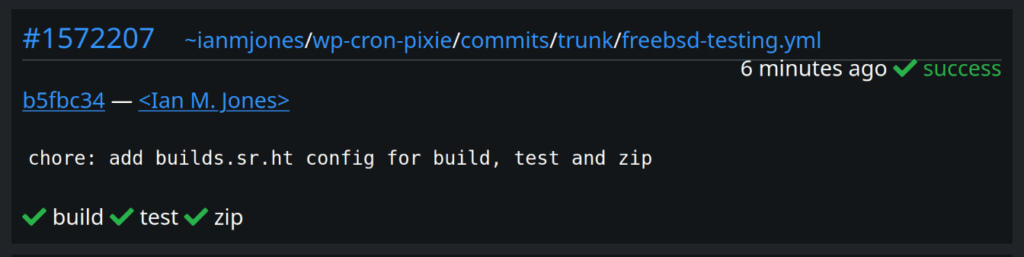
Wow, I just created a new config for builds.sr.ht that worked first time!
That never happens, who ever creates a CI/CD config that runs without error when first submitted?!
Admittedly, not the most complicated of configs, but I suspect using Gleam and FreeBSD helped due to their simplicity and well thought out straight forward usage patterns.
I’ll give a little more detail in the next few sections, but first, here’s the changelog:
* Added search of schedules and events.
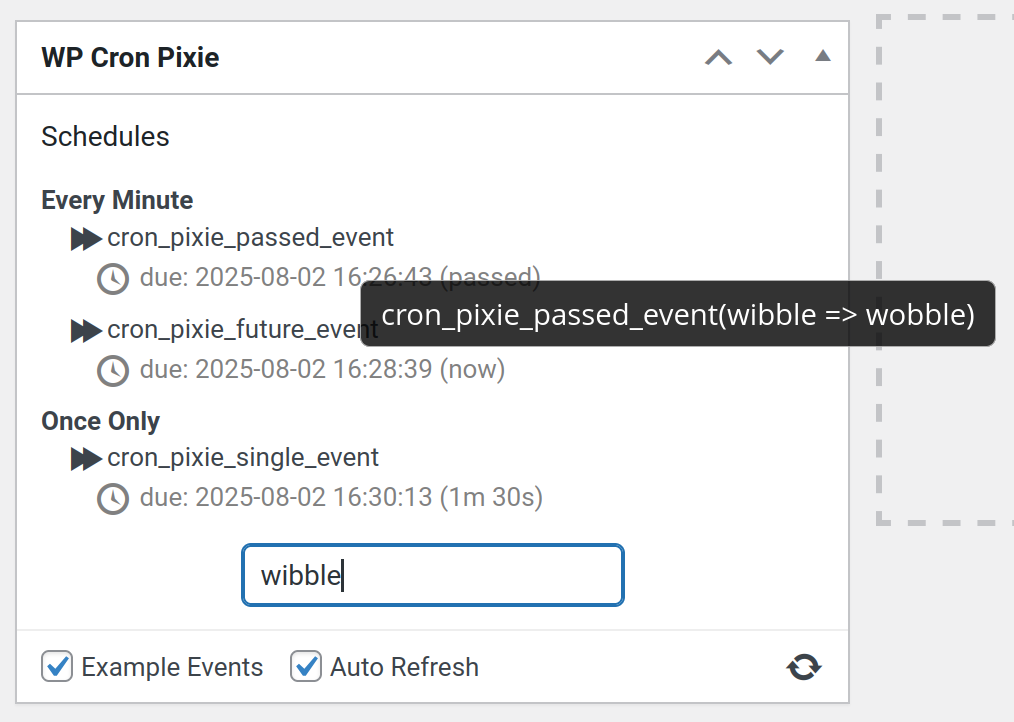
* Added display of event hook with args when mouse hovers over event name.
* Auto refresh setting is now saved for each user.
And shortly after v1.6.1 was released, WP Cron Pixie v1.6.1 was released too, with the following one line changelog:
* Example events setting is now saved for each subsite in a multisite install.
Search schedules & events
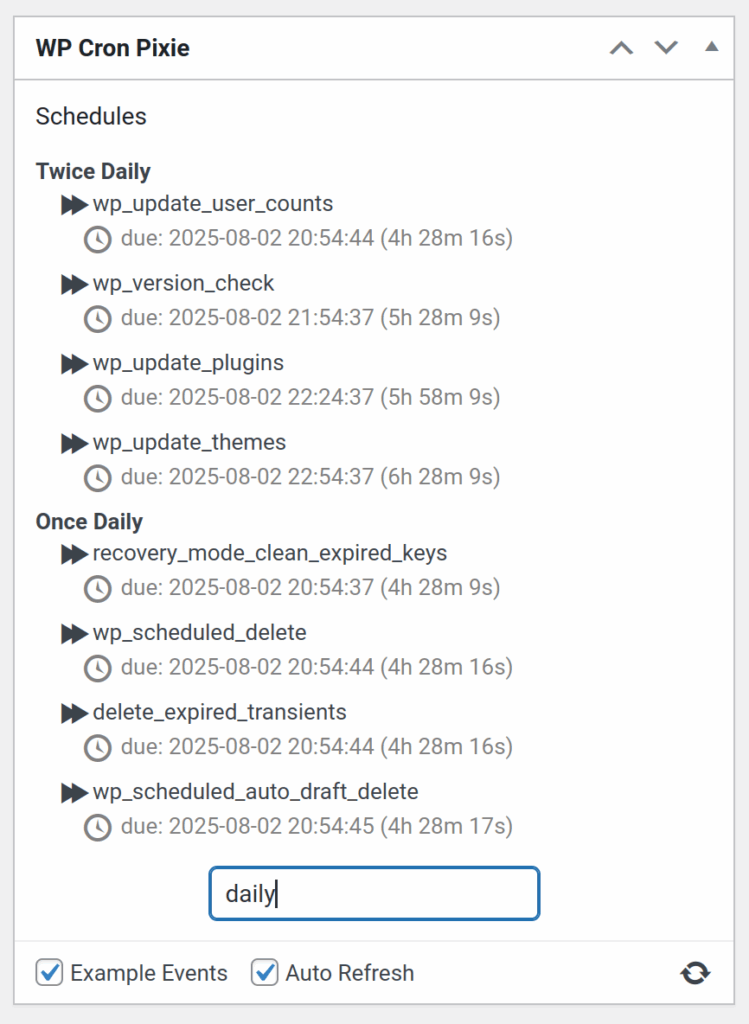
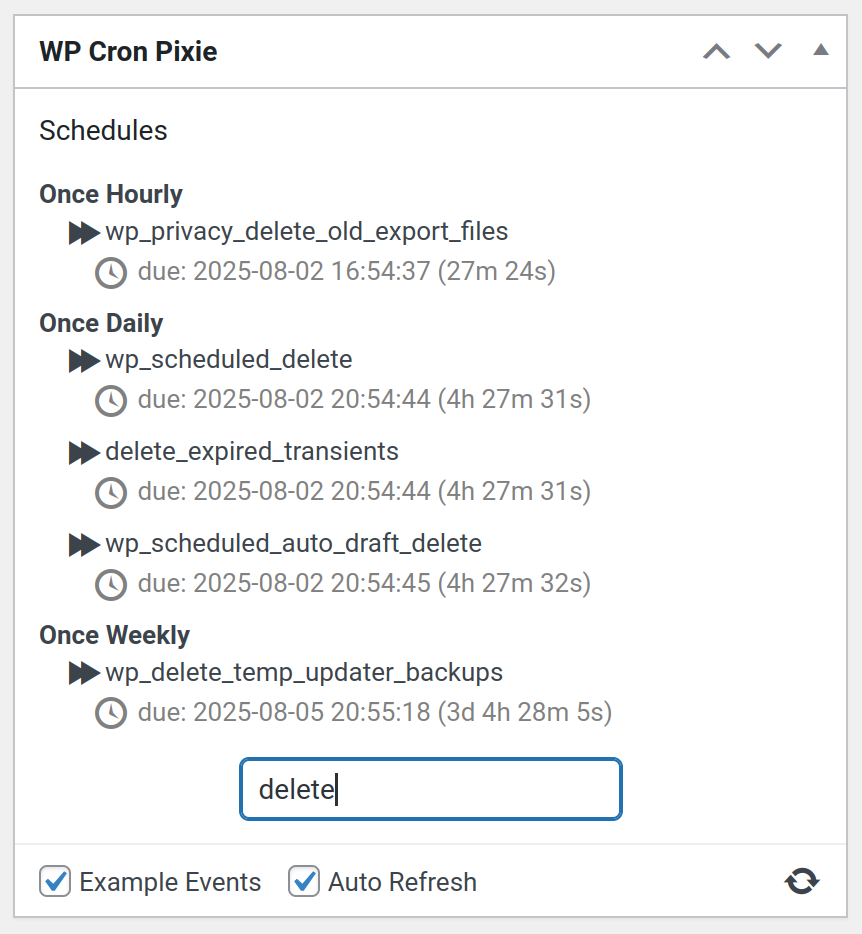
It’s now possible to search your site’s cron schedules and events, very helpful on a site with lots of events and custom schedules.
The search box can be found below the list of schedules and events.
If you enter some text into the search box that matches part of one or more schedule’s name, the list of schedules will be filtered to those schedules and their events.
In a similar way, if you enter search text that matches on part of a cron event’s name, it will be shown along with its schedule, but other events in the same schedule that do not match the search query will not be shown.
Display event hook’s arguments
When you search for something that happens to occur in a cron event’s hook arguments, the corresponding event is shown. That would be quite confusing unless you could see what the event’s hook arguments are, so now when you hover your mouse cursor over an event’s name, it shows the hook with it’s arguments.
Per-user auto refresh setting
While developing the search functionality detailed above, which also saves the last entered search text so it is restored when you return to the admin dashboard, I realised WP Cron Pixie wasn’t saving its settings at quite the right level.
Before WP Cron Pixie v1.6.0, all settings were saved at the site level, or on a multisite, at the network level.
Now, the Auto Refresh setting is saved per user as each user may have a different preference as to whether they want the cron schedules to automatically refresh or not.
The Example Events setting remains at the site level as when enabled it creates cron events for the entire site and is unable to be scoped to just a single user. However, while writing this very blog post I realised that the plugin was saving the Example Events setting at the network level for a multisite install, which makes no sense as WP-Cron runs in subsites, not at the network level. Hence how WP Cron Pixie v1.6.1 came into being, ensuring that the plugin can create its example events on any multisite subsite it is used on.
For a long long time (I have no idea how long it really was), I used the venerable Nord theme colours to theme my desktop and apps, and even my old website.
Then, when I rebooted my website, I just went with ye olde Twenty Fifteen theme, using the dark theme, it kinda worked well as a reflection of the colours I was using everywhere else in my digital life, and therefore screenshots I posted didn’t look out of place.
However, I’ve not been too happy with how my blog posts look in the Twenty Fifteen theme, the content area is just too thin for the type of code and screenshot heavy content I post. It wasn’t a great reading experience. So I felt it was time to find a new theme.
I wanted something super simple with a nice wide or easily altered content area, and preferably a Nord colour scheme, or super simple palette that I could alter to Nord colours, because I miss using that colour scheme, and for reasons I’ll go to into a second, it’ll match any screenshots going forward.
After not much looking around actually, I found the Blockbase theme, which is about as simple as it gets.
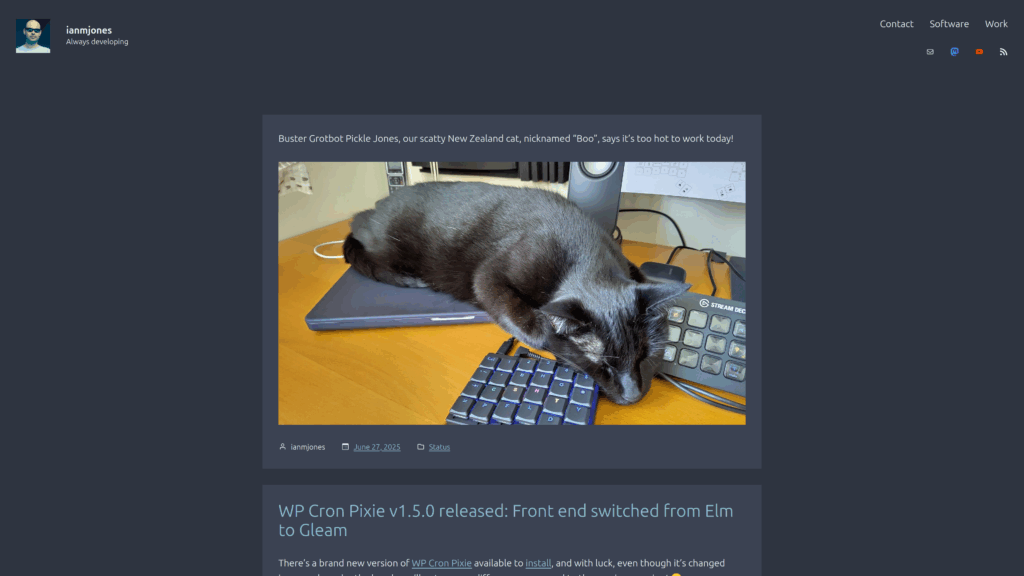
And after just a couple of quick tweaks, I got it to something which I really like, and so this here website now looks something like the following screenshot.
“What?! I thought you’d fallen back in love with Solus?”
… I hear you ask.
Well, I do still absolutely love Solus, it’s an awesome Linux distribution, so fast and simple to use, but I’ve been hitting a show stopper issue with running Docker projects that the maintainers have struggled to fix, and a few other smaller day to day problems that over time built up to make me start looking around for another distro.
After playing with a few BSD and Linux distros again, I thought I’d give COSMIC Epoch another go to see how it’s progressed since I last gave it a spin early last year.
Even though it is definitely an alpha as a few feature aren’t complete, and being based on Ubuntu 24.04 LTS is a bit painful, it’s so good to have a working Docker setup again, and I really like the COSMIC desktop in tiling mode.
To be fair, I generally use one app per workspace, but the shortcuts that the peeps at System76 have set as the defaults are spot on, and work very well for me when navigating workspaces etc.
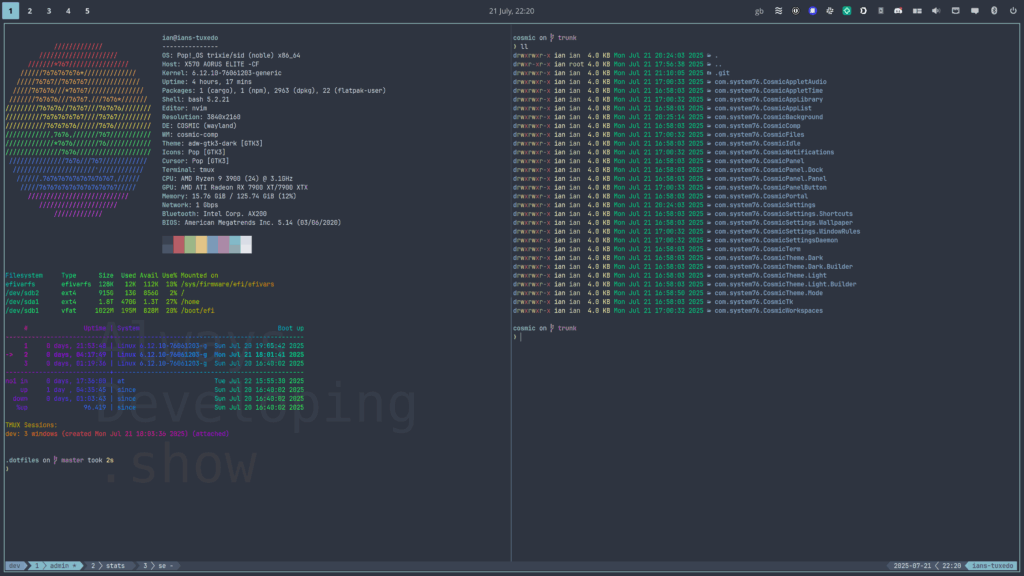
In the above screenshot you might just be able to work out that I have my COSMIC config checked into a git repo, which means I can easily use it across all my desktops by checking it out to ~/.config/cosmic. When I saw Jeremy Soller demo that it’s safe to do that in a recent presentation, that was a clincher to get me to try COSMIC again. I’m glad I did.
I did initially try keeping my cosmic config in my ~/.dotfiles repo, which I then use stow to put into place. However, every now and then COSMIC would clobber the ~/.config/cosmic symlink, creating a directory in its place. So I switched to making it a directory itself, which just so happens to be a git repo so that I can track my changes and push them out to all my Pop!_OS machines. That seems to be working very well.
And now that I’m back to using Nord for all the things, if I finally get back to making videos for my YouTube channel again, at least I won’t need to change my thumbnail theme!
There’s a brand new version of WP Cron Pixie available to install, and with luck, even though it’s changed immensely under the hood, you’ll not see any difference compared to the previous version! 😄
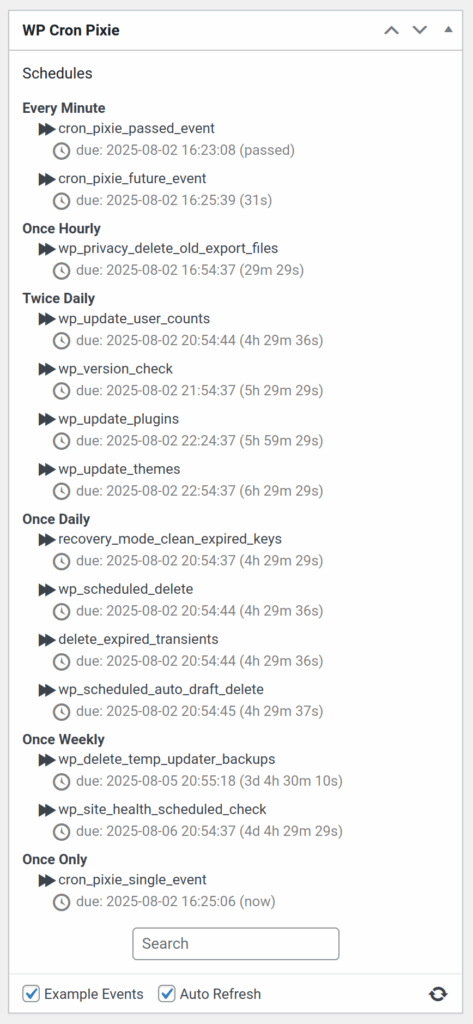
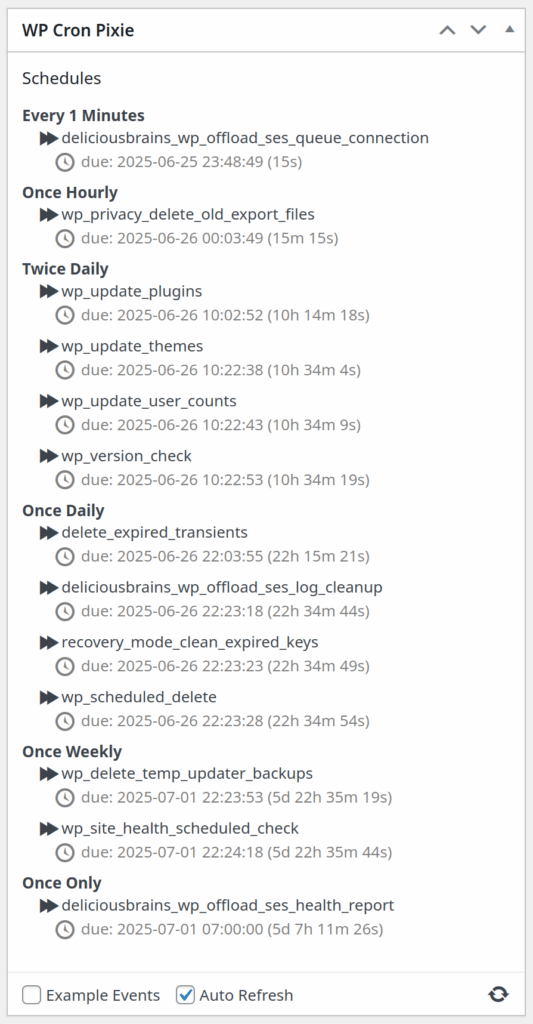
WP Cron Pixie is a little WordPress dashboard widget to view the WordPress cron, and run an event now rather than later.
Gleam Front End
The front end has been rewritten in Gleam, a “friendly language for building type-safe systems that scale“!
Back in May 2023 I got interested in Gleam after seeing Kris Jenkins interview Louis Pilfold on the Developer Voices podcast, I loved the idea of a type safe functional language with a clean but familiar syntax, that compiles to Erlang to run on the BEAM, or to JavaScript to run basically everywhere.
I recorded a few episodes, but alas, life got in the way, and I stopped recording videos for my YouTube channel while distracted by some personal and work projects, including moving house.
It’s only recently that things have settled down a little, and I’ve started to have a bit of time to start working on personal software projects again. Unfortunately my new home office is a horrible echo producing machine, so I can’t currently record any videos. So, until I can shoe-horn some soft surfaces into my small office to dampen the sound, I’m just enjoying working on projects without someone watching over my shoulder. 😉
Since I first started this project over a year ago, a bunch of things have improved in the world of Gleam, including decoders, which is what I’d been working on at the time I stopped. This meant I had to change quite a bit of the Gleam code I’d already written for decoding the data loaded by the widget when first shown, but to be fair, I hadn’t really got much done yet anyway.
I found the new decoder setup really nice, if still a little tricky to get my head around at first, but after a bit of help via the super nice folks in the Discord community, I was off and running. I built a bunch of data decoding into a data module, using TDD to make sure it all worked even though I had no UI yet to view the decoded data.
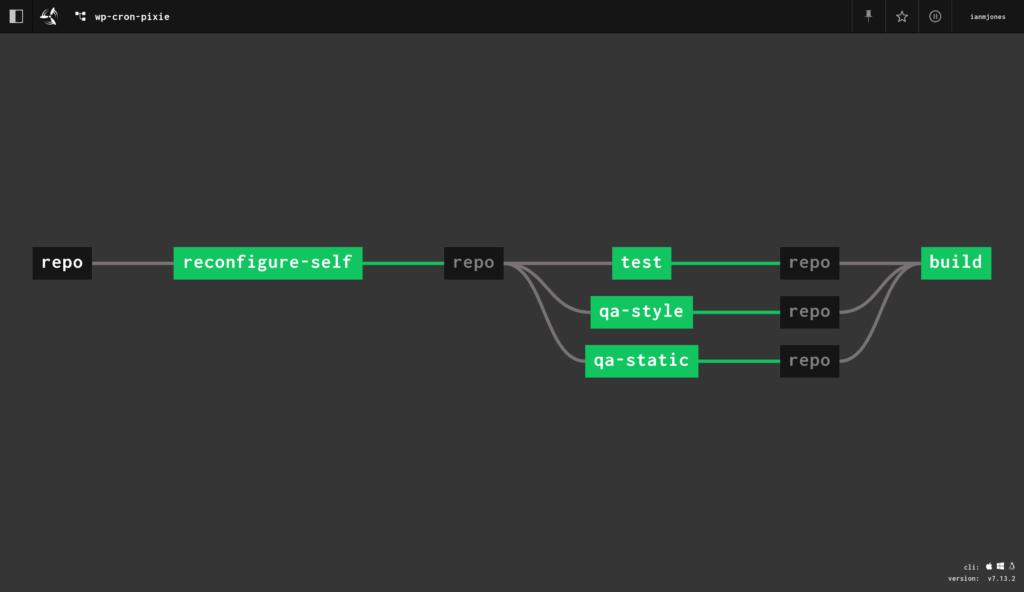
And of course, although I used watchexec to continuously run the tests and build and install the plugin into my local test site every time I saved changes, I also set up a concourse-ci.yml file to make sure any commits I pushed up to the repo got tested by my dinky little Concourse CI server.
With the initial data being correctly decoded as flags for the Lustre based UI, I found it relatively quick and easy to build out the UI given that I could effectively copy the same layout as I’d used in the Elm version.
I started off the UI rendering conversion by simply grabbing the output HTML from WP Cron Pixie .1.4.4, and using Louis’ HTML to Lustre Converter to get a static rendering using Lustre syntax. From there, I chopped up the pieces into separate views to handle converting the data Model into things like a list of cron schedules, each with a list of cron jobs, while retaining the same classes that the existing CSS used. In the end, I don’t think I changed the CSS at all.
Compared to how I’d structured the Elm code, I did make some small improvements along the way while building out the UI in Gleam and Lustre, but having the Elm code for reference definitely sped up the development time. The UI code is looking pretty sweet if you ask me! 😊
One thing that is different in Gleam and Lustre compared to Elm is how you make a timer, like what I needed to trigger the auto-refresh of the UI every 5 seconds. In Elm you have subscriptions, and can subscribe to a time tick. However, with Lustre, there is no built in subscription feature, but it does still have effects, and Gleam has a very powerful foreign function interface (FFI) mechanism. This meant I could create a very simple JavaScript timer:
/**
 * Start a periodic timer that fires a callback on a regular cadence.
 *
 * @param {int}    interval Seconds between each tick.
 * @param {object} callback A function to be called on each tick.
 */
export function set_interval(interval, callback) {
	window.setInterval(callback, interval * 1000);
}
Hooking up the change events in the form fields in the widget’s settings footer, and handling clicks was super easy with Lustre, and Bob’s yer Uncle, I had a fully working WordPress widget using Gleam for building the UI.
Back End Improvements
Having built out the UI with Gleam, I then set about improving the back end PHP code.
I made quite a few changes, fixed a couple of bugs, improved security, separated the AJAX handing code from the underlying handling code in case I decide to switch to a WP-REST-API mechanism, and generally cleaned things up.
To aid with the cleanup, I added PHPStan and PHP_CodeSniffer to the mix to perform static analysis and code style checks respectively.
PHPStan is currently passing at level 9, just one step down from the max of 10, which is unfortunately impossible to get to due to some of the referenced WordPress functions, and with only a couple of ignored rules that are due to the way a couple of WP cron functions need to be used.
Likewise, the PHP_CodeSniffer checks are passing all the extended WordPress rules, with just an exclusion because the plugin needs to create its own cron schedule, and the ruleset is currently using a deprecated rule that naturally needs to be skipped.
That Was Fun
All in all, I had a lot of fun rewriting WP Cron Pixie’s UI in Gleam, and improving the PHP side of things too.
I am now thinking about what improvements I can make to WP Cron Pixie, might have a crack at using Birdie to snapshot test the UI, and wondering what my next Gleam based project will be as I’ve definitely got the “Gleam ALL THE THINGS” bug!